
HomeBlogTop 5 Ways to Organize Your ChatGPT Workspace 2026: Boost Productivity with Bulk Rename & Archive
Top 5 Ways to Organize Your ChatGPT Workspace 2026: Boost Productivity with Bulk Rename & Archive
2026-10-09
5 min read
Nabil Wassim
Tutorial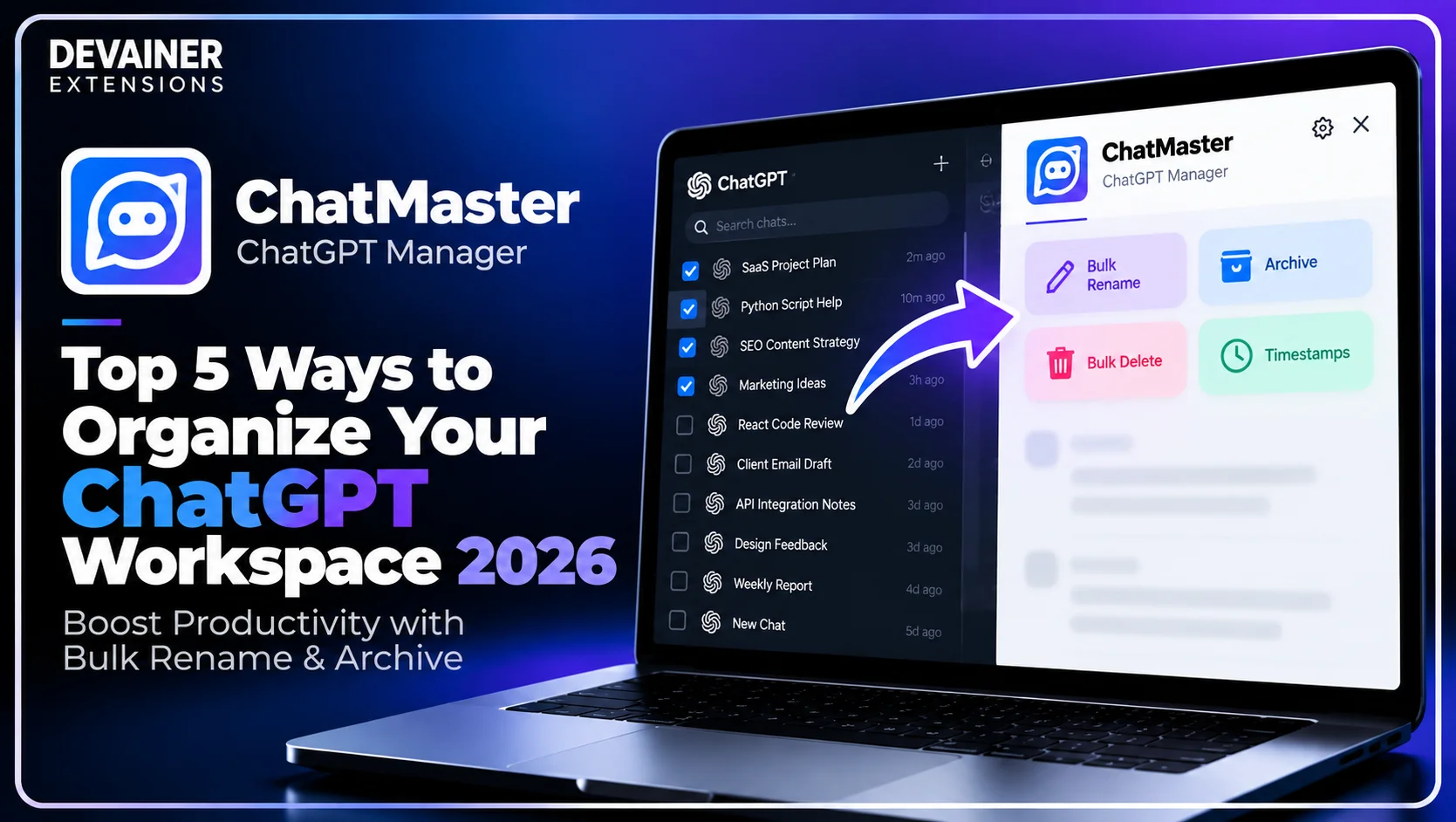
Discover how to organize your ChatGPT workspace 2026! Bulk delete threads, rename conversations, track message timestamps, and boost productivity safely using ChatMaster.
Top 5 Ways to Organize Your ChatGPT Workspace 2026: Boost Productivity with Bulk Rename & Archive
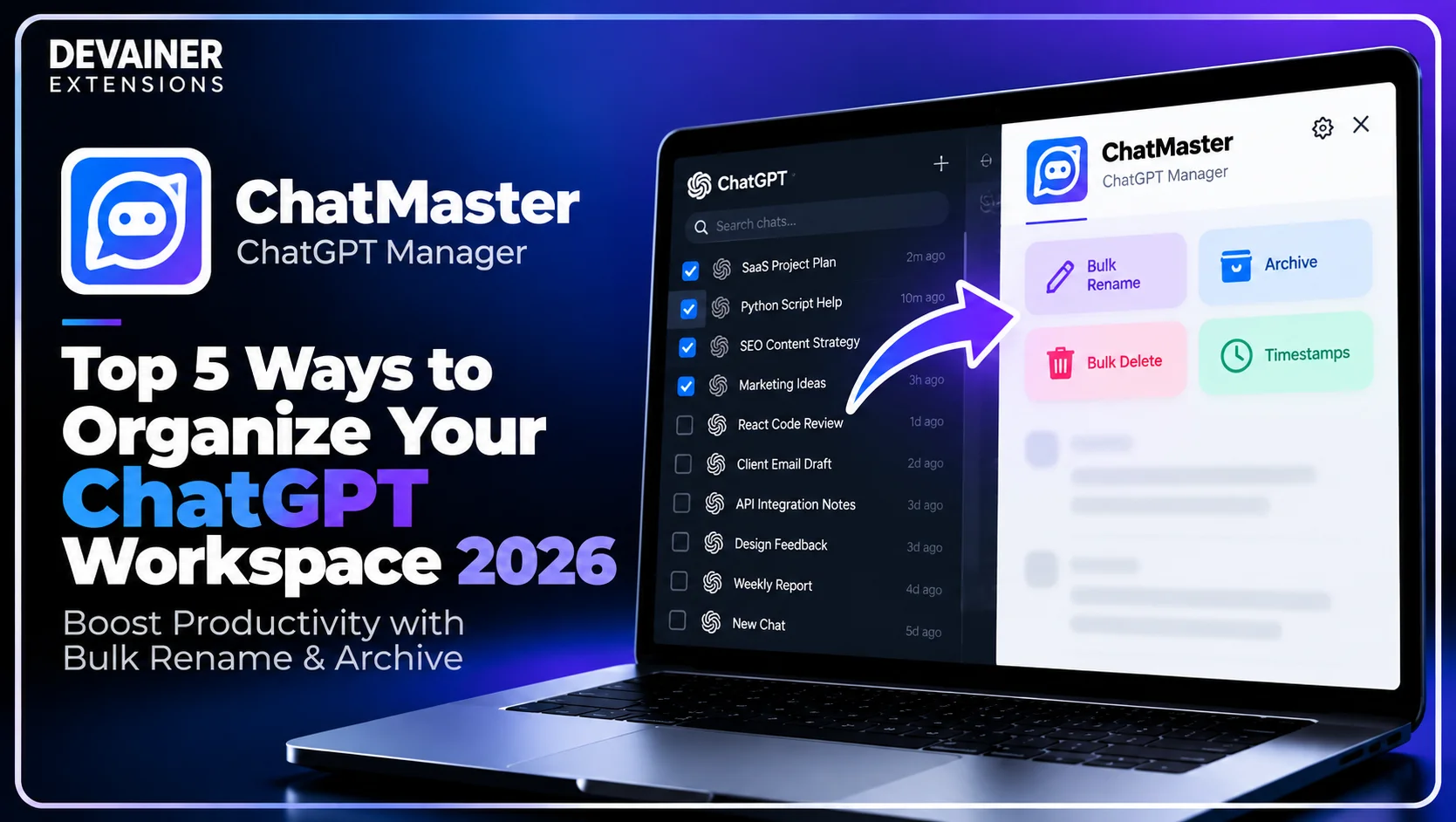
Learning how to organize your ChatGPT workspace 2026 has become an essential productivity requirement for software engineers, content creators, research analysts, and digital agency leaders operating in 2026. As artificial intelligence models become deeply integrated into daily professional workflows, power users accumulate hundreds of conversational threads every month. However, managing a cluttered sidebar filled with generic default thread titles creates severe cognitive friction, slowing down daily research and development tasks.
When vital project prompts and code snippets get buried under dozens of un-organized chat histories, professionals lose valuable working hours searching for past context.
Manually clicking individual thread menus to rename, archive, or delete old conversations one by one is extraordinarily tedious and inefficient.
In this comprehensive 2026 workspace organization guide, we will analyze five game-changing workflow optimization strategies, evaluate how client-side processing guarantees prompt privacy, and detail a practical 3-step management blueprint using ChatMaster – ChatGPT Bulk Delete, Archive, Rename & Timestamps.
The Hidden Productivity Bottlenecks of a Cluttered AI Sidebar
Before implementing automated workspace management tools, digital professionals must evaluate how sidebar clutter impacts daily mental focus and workflow velocity. Relying on default interface settings creates unnecessary friction during complex development projects.
1. Cognitive Load and Context-Switching Fatigue
Navigating an un-organized ChatGPT sidebar forces users to read through dozens of vague default titles like "New Chat" or "Python Script Help." This visual noise creates subtle cognitive fatigue every time you switch between client projects.
Spending two to three minutes searching for a specific historical prompt thread breaks creative momentum, delaying project execution and reducing daily output.
2. Fragmented Technical Documentation
Software developers and research analysts frequently use AI sessions to debug specific code modules or draft content strategies. When conversations remain scattered across unnamed threads, valuable technical solutions become lost over time.
Structuring and renaming conversation histories transforms your AI chat sidebar into an easily searchable, personal knowledge base.
Transforming ChatMaster into Your AI Productivity Command Center
While basic users struggle with default interface limitations, ChatMaster – ChatGPT Bulk Delete, Archive, Rename & Timestamps provides advanced bulk management tools designed specifically for power users.
1. Bulk Conversation Actions with Intuitive Checkboxes
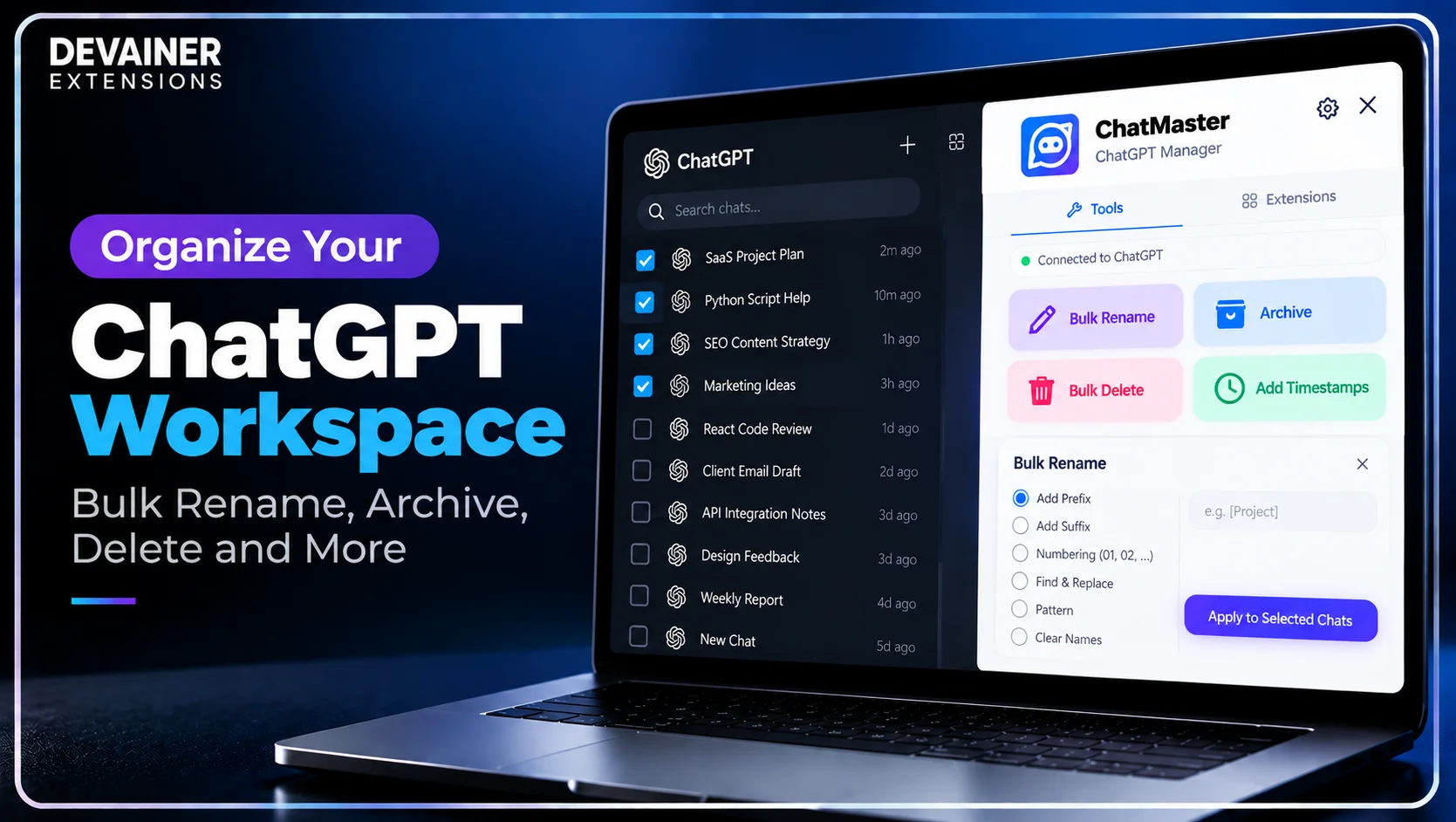
ChatMaster adds intuitive selection checkboxes directly to your ChatGPT sidebar layout. Users can select multiple chat threads simultaneously to bulk delete, bulk archive, or bulk rename dozens of conversations in a single click.
Instead of performing hundreds of manual menu clicks to clean your workspace, you can organize your entire account history in less than a minute.
2. Advanced Bulk Rename Engine with Flexible Rules
Generic thread titles make historical research difficult. ChatMaster features an Advanced Bulk Rename Options engine supporting powerful naming rules.
You can add custom prefixes, suffixes, numbered indexes, or execute automated find-and-replace text modifications across multiple threads instantly.
3. Smart Floating Navigator and Message Timestamps
Navigating long conversational threads containing complex code blocks or extensive writing drafts can be frustrating. ChatMaster incorporates a Smart Navigator & Floating Panel that lets you jump between messages or reach top and bottom thread positions instantly.
Furthermore, ChatMaster displays precise message timestamps directly underneath each chat bubble, allowing you to track exact prompt execution times with zero server data leakage.
Organizing your ChatGPT workspace becomes much easier when you understand how to manage conversation history efficiently. Beyond renaming project threads and archiving inactive chats, a structured cleanup workflow can help you maintain a focused sidebar and quickly access important conversations. For a practical walkthrough, explore our guide on how to manage and clean up ChatGPT history with ChatMaster, covering bulk conversation management, archiving, renaming, and tools for navigating lengthy chat histories.
Way 1: Bulk Renaming Project Threads with Indexed Prefixes
The most effective way to eliminate sidebar confusion is establishing a structured naming convention for active client projects.
Structuring Project Files for Rapid Context Retrieval
When managing multiple development sprints or client accounts, group related threads together using custom prefixes. For example, applying a [SaaS-App] or [SEO-Audit] prefix to ten related chats arranges your sidebar logically.
Using ChatMaster's bulk rename tools, you can highlight target chats and apply custom prefixes or numbered indexes across all selected threads in seconds.
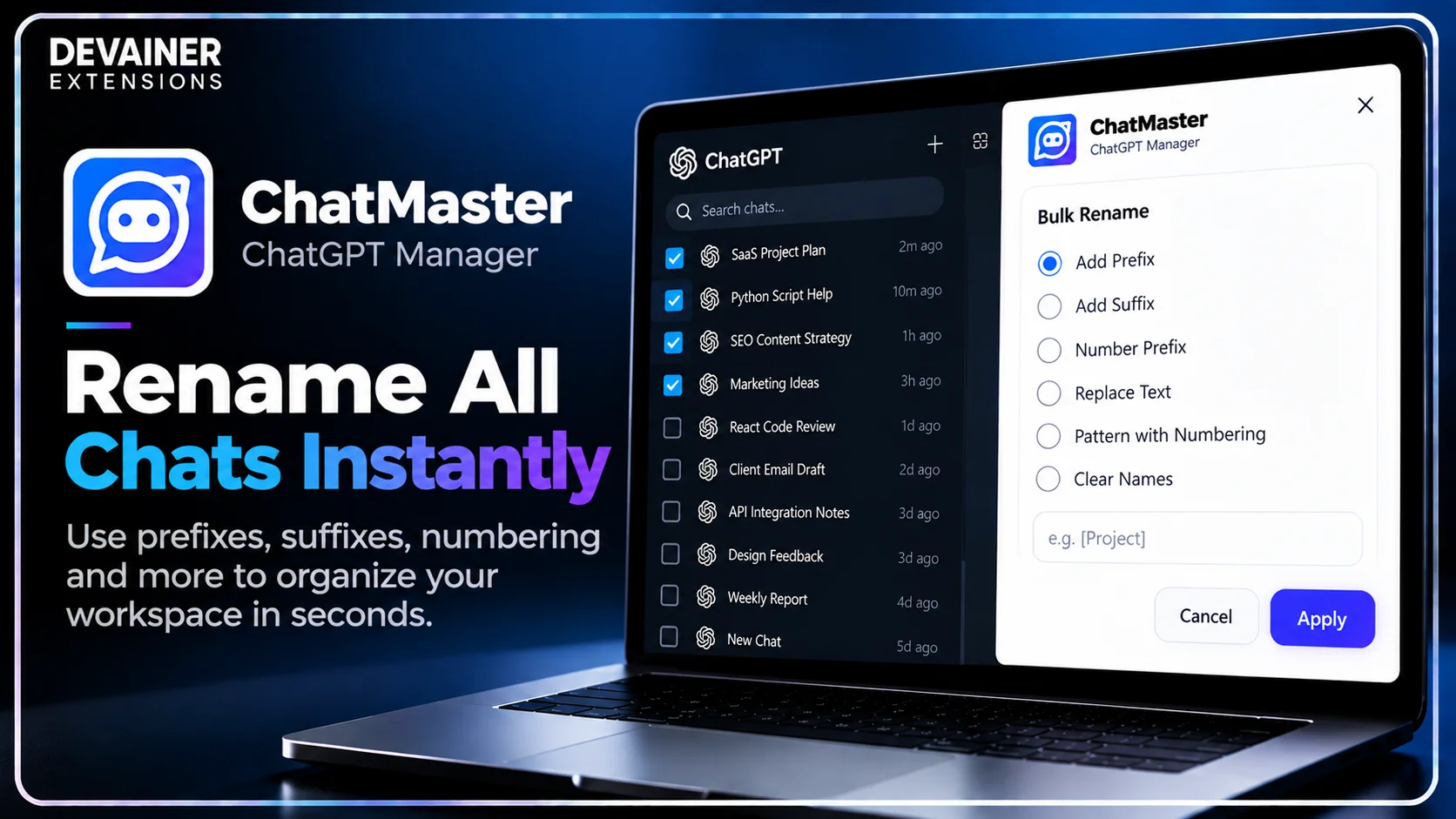
Organizing conversations by project code allows you to locate specific research threads instantly during client meetings.
Way 2: Archiving Inactive Sprints to Eliminate Visual Noise
Keeping completed project threads visible in your active sidebar creates unnecessary visual clutter.
Maintaining a Clean Active Workspace Without Losing Data
Deleting historical threads completely might destroy valuable prompt engineering context that could be useful in future projects. Archiving offers the ideal compromise.
With ChatMaster, you can select dozens of completed sprint threads using sidebar checkboxes and execute a bulk archive action in one click.
Clearing inactive conversations keeps your active sidebar lean and focused while preserving complete chat histories in your account archives.
Way 3: Bulk Purging One-Off Test Chats and Disposable Prompts
Daily AI usage involves creating dozens of quick, disposable chats for simple grammar checks, quick translations, or minor code syntax verification.
Instantly Purging Digital Garbage
Accumulating hundreds of trivial, one-off conversations dilutes the value of your core project threads.
ChatMaster enables power users to scan their sidebar, check disposable threads, and perform a bulk delete operation instantly.
Regularly purging disposable chats keeps your workspace clean, ensuring that only high-value reference threads remain in your history.
Way 4: Utilizing the Floating Navigator for Long Technical Threads
Technical conversations involving multi-step software debugging often extend into dozens of long message blocks.
Jumping Directly to Essential Code Blocks
Scrolling through massive conversational threads manually to find an earlier code snippet or revised prompt wastes time.
ChatMaster’s Smart Floating Navigator panel stays conveniently pinned to your browser view, allowing you to jump to the top, bottom, or navigate between individual message blocks seamlessly.
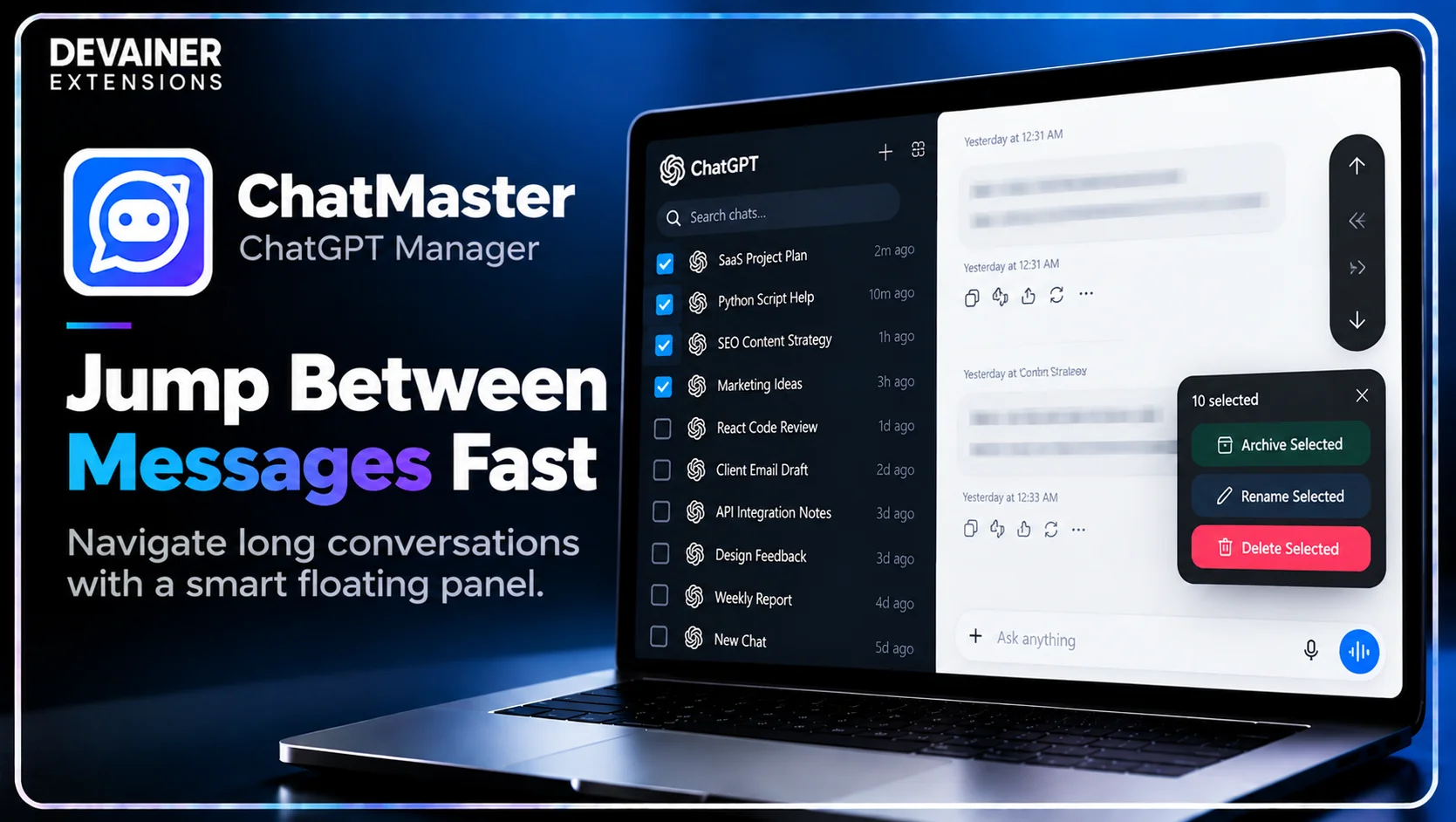
Accelerating thread navigation keeps your focus locked on solving complex engineering problems rather than managing scrollbars.
Way 5: Tracking Prompt Execution Times with Exact Timestamps
When building automated content pipelines or benchmarking AI response speeds, knowing exact generation times is crucial.
Documenting AI Generation Timelines Accurately
Standard ChatGPT interfaces omit precise message delivery timestamps, making it difficult to reconstruct prompt development timelines.
ChatMaster automatically displays exact timestamps right underneath each message bubble without making external API calls.
Having precise time records helps developers evaluate prompt performance and document AI research workflows accurately.
The Cybersecurity Imperative: 100% Client-Side Privacy
Managing confidential enterprise prompts and private code snippets requires software that respects strict privacy standards. Third-party cloud tools that capture chat logs introduce major corporate security risks.
ChatMaster operates on a strict 100% Privacy & Local Processing Architecture.
1. Zero External Servers and Complete Client-Side Execution
ChatMaster executes 100% locally inside your active desktop browser session. It never inspects, captures, stores, or transmits your private prompts, chat contents, or user tokens to external servers.
Because all UI automation happens entirely within your local browser, your private intellectual property remains completely confidential.
2. Safe UI Automation with Rate Throttling
Executing rapid bulk actions on web interfaces can sometimes trigger temporary UI rendering errors.
ChatMaster incorporates automated rate throttling that simulates native user actions smoothly. This controlled pacing ensures your bulk rename, archive, and delete requests execute safely without freezing your browser tab.
The 3-Step Blueprint to Organize Your ChatGPT Workspace
Implement this simple 3-step operational workflow to clean and structure your AI workspace using ChatMaster:
Step 1: Open ChatGPT and Enable Selection Checkboxes
Access Web Layout: Open Chrome on your desktop computer and navigate to chatgpt.com to load your active session.
Launch Extension: Click the ChatMaster toolbar icon to activate multi-select checkboxes across your sidebar threads.
Select Target Threads: Check the boxes next to the conversations you wish to rename, archive, or delete.
Step 2: Apply Bulk Actions and Custom Naming Rules
Choose Action Type: Click Bulk Delete, Bulk Archive, or Bulk Rename on the intuitive ChatMaster control panel.
Configure Rename Rules: If renaming, enter your desired prefix, suffix, or find-and-replace text rules.
Verify Selection: Confirm that your selected action targets the exact thread group you intend to modify.
Step 3: Execute Action and Enjoy a Streamlined Sidebar
Run Bulk Command: Click execute to apply your selected bulk action instantly across all checked threads.
Utilize Floating Panel: Use the Smart Floating Navigator to jump through active conversations effortlessly.
Maintain Workspace Hygiene: Perform weekly bulk cleanup runs to keep your AI workspace organized and clutter-free.
Comparing ChatGPT Workspace Management Methods
To help creators and software leads select the most efficient management workflow, the following evaluation contrasts ChatMaster with default manual tools:
1. Local Browser Automation (ChatMaster)
Bulk Processing: Full bulk action support (Delete, Archive, Rename) via intuitive sidebar checkboxes.
Rename Flexibility: Advanced naming rules with custom prefixes, suffixes, index numbers, and text replacement.
Navigation Power: Smart Floating Navigator for fast scrolling plus precise message timestamps.
Privacy Standard: 100% Local processing with zero external servers, zero tracking, and zero prompt exposure.
Operating Cost: 100% Free Forever with unlimited usage and support for 60+ languages.
2. Default ChatGPT Interface
Bulk Processing: None; requires manually clicking individual three-dot menus thread by thread.
Rename Flexibility: Basic manual typing for individual thread titles only.
Navigation Power: Basic browser scrollbar with no message timestamps or jump controls.
Privacy Standard: Native platform handling.
Operating Cost: Included with standard user account.
3. Third-Party Cloud Automation Tools
Bulk Processing: Variable bulk capabilities, often requiring external web dashboard logins.
Rename Flexibility: Basic thread title modification options.
Navigation Power: Limited browser overlay features.
Privacy Standard: High Risk; often captures chat logs and prompt analytics on remote servers.
Operating Cost: Frequently requires paid monthly subscriptions or account registration.
Frequently Asked Questions (FAQ)
Q: Is ChatMaster free to use?
A: Yes, 100% free! ChatMaster offers full bulk action functionality with zero hidden subscription charges or paywalls.
Q: Does ChatMaster store or collect my private ChatGPT prompts?
A: No, never! ChatMaster operates under a strict Privacy-First Architecture. All processing occurs locally within your browser sandbox with zero external server tracking.
Q: Can I safely bulk delete or archive dozens of chats at once?
A: Yes! ChatMaster includes automated rate throttling to simulate natural UI actions, ensuring your bulk operations execute smoothly without errors.
Q: Does ChatMaster support dark mode and international languages?
A: Yes! ChatMaster fully supports dark mode themes and features localized UI support across 60+ global languages.
Ready to Supercharge Your ChatGPT Workspace?
Take full control of your ChatGPT sidebar with bulk actions, timestamps, and smart navigation today.
Install ChatMasterNabil Wassim
Blog Author
Article Info
2026-10-09
5 min read
Nabil Wassim
Tutorial